the jelly office
How to organize screenshots on iPhone
Old tickets, design references and recipes all end up in the same camera roll. Start with the screenshots you took most recently and sort them by what you’ll use them for.
Find your screenshots in Apple Photos
Look for Screenshots under Media Types in Photos. Start with a handful of recent captures. An expired coupon or a duplicate booking confirmation is an easy first decision.
Make albums for what you’ll do next
Put a boarding pass and hotel details in a trip album. Save recipes together if you’ll open them while cooking. Name the album for when you’ll need it.
Review consecutive screenshots together
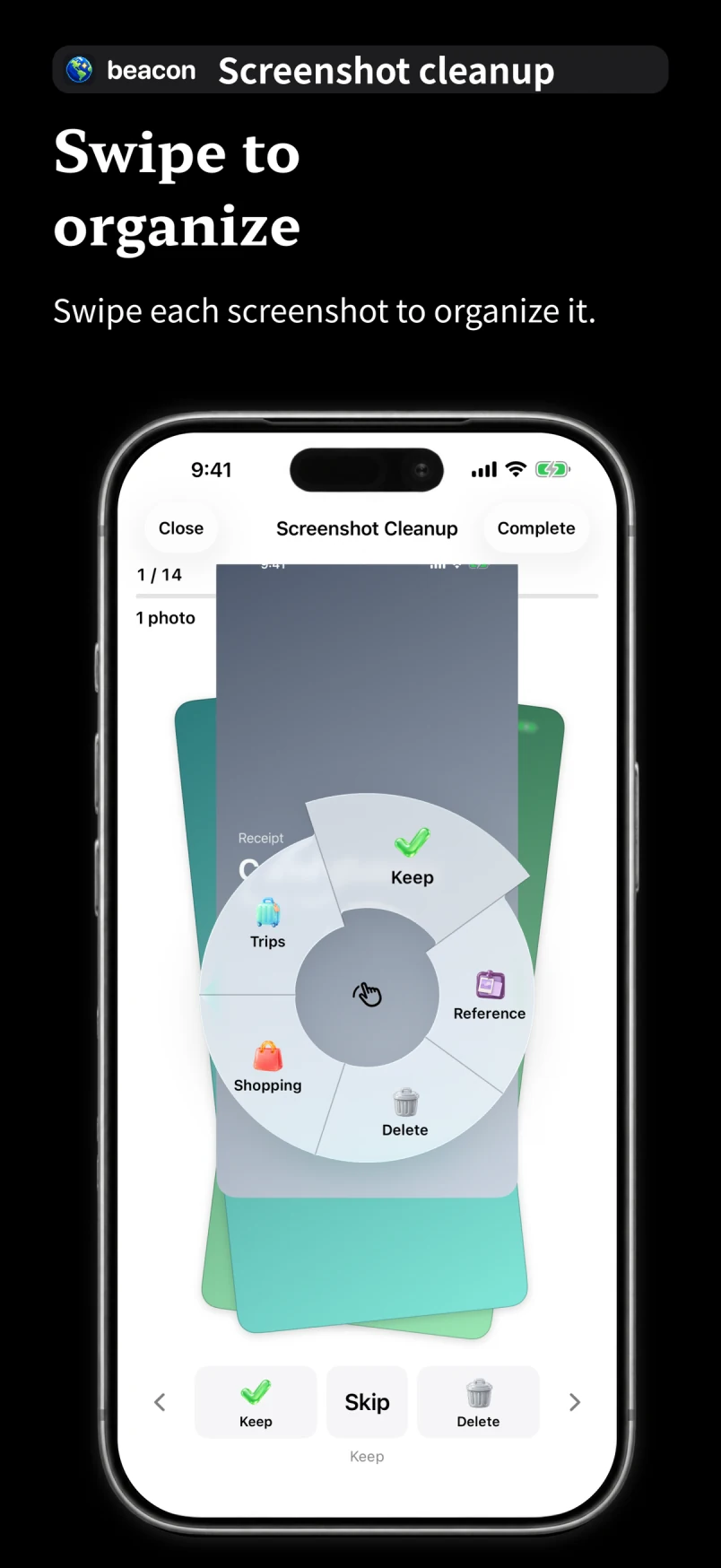
A map and the reservation page captured right after it may tell one story. In Beacon, you can review consecutive screenshots as a group and pick the pages you actually need.
Review before deleting
In Beacon, swiping can mark a screenshot for deletion. Look through those choices in the review screen before applying them.
Make the next cleanup smaller
Sort the trip screenshots after you get home, or clear receipts once your return window closes. Small groups are easier to review while you still remember why you took them.
See screenshot cleanup in Beacon →